 Baby Art
Guided Access: lock your iPhone or iPad to one app
Guided Access is built into every iPhone and iPad. Turn it on once under Settings › Accessibility, open the app you want to hand over and triple-click the side button. The device stays in that app until you triple-click again and enter your passcode. Here's the whole thing, from setting it up to getting out again, and what it does and doesn't stop.
What Guided Access does
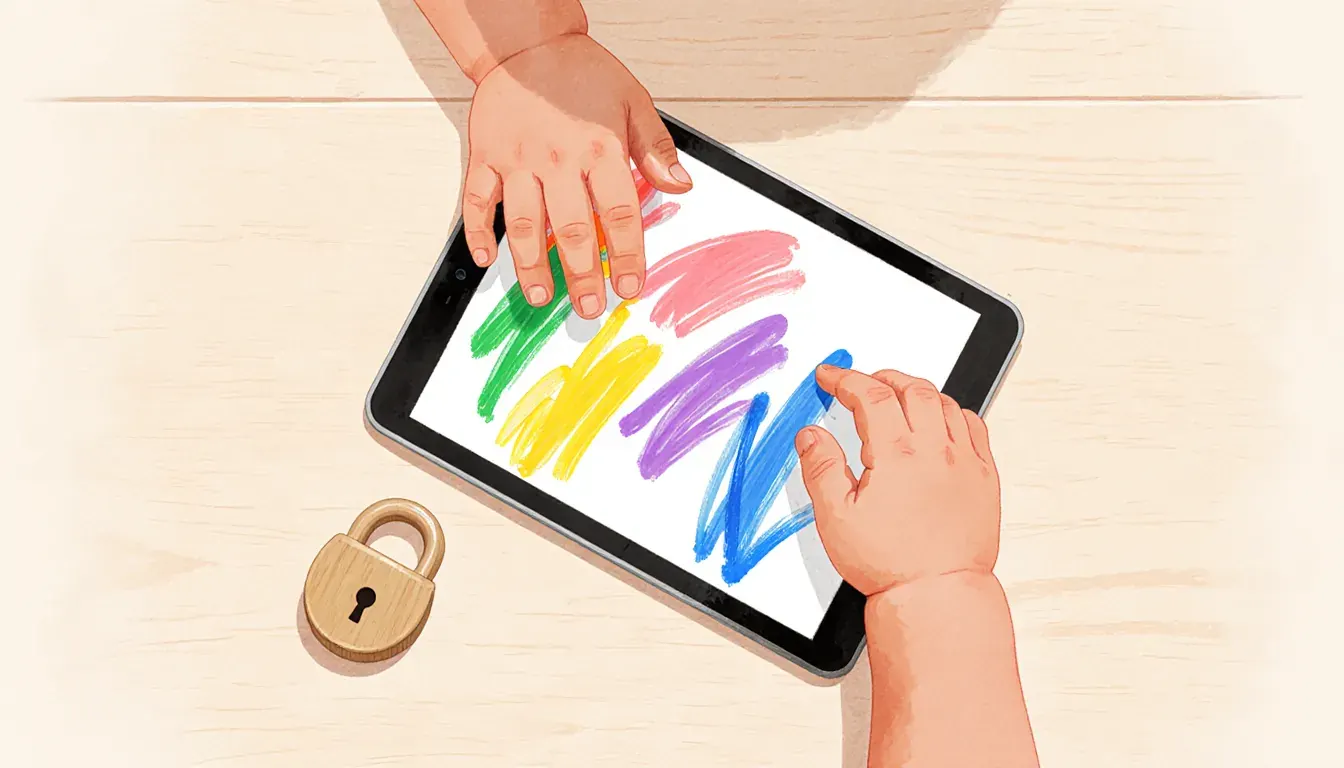
Guided Access keeps the iPhone or iPad in one app. Swiping up for the Home Screen or the app switcher does nothing, and there's no way out of the app until you end the session. On top of that you choose what else to switch off (the side button, the volume buttons, motion, the on-screen keyboard, touch altogether, parts of the screen) and whether the session should end by itself after a set time.
What a session can switch off
One thing to know before you rely on it: Crash Detection and emergency calls are off while a session runs. End the session before you hand the phone to someone who might need them.
Turn it on once
A Guided Access session, start to finish
- Open Settings, tap Accessibility, then Guided Access, and turn on Guided Access.
- Tap Passcode Settings, then Set Guided Access Passcode, and choose a code. It can be different from the one that unlocks the phone, so pick one your child hasn't watched you type a hundred times.
- On the same screen you can turn on Face ID or Touch ID. Then a glance or a fingertip ends a session instead of the code.
- Leave Accessibility Shortcut on. That's what makes a triple-click start Guided Access from inside an app.
Under Time Limits you can have a sound play, or hear how long is left, before a timed session ends.
Start a session
- Open the app you want to lock the device to.
- Triple-click the side button on an iPhone, the top button on an iPad, or the Home button on a device that has one. If a panel of accessibility shortcuts appears, tap Guided Access.
- Want part of the screen to stop responding? Circle it with a finger. You can drag the box around or resize it.
- Tap Session Settings (called Options on iOS 18 and earlier) and switch off what you don't want: Side Button, Volume Buttons, Motion, Software Keyboards, Touch. Set a Time Limit here too, if you want one.
- Tap Start. The next time you start a session in the same app, it begins straight away with the same settings.
Motion is the one to think about with Baby Art: switch it off and the screen won't rotate, but a shake won't start a new canvas either. I leave it on.
End a session
Triple-click the same button again and enter your Guided Access passcode, or use Face ID or Touch ID if you turned that on. Then tap End. Tap Resume instead if you only wanted to check something, and the session carries on. On iOS 18 and earlier, Apple's help says a double-click brings up the passcode screen instead, so if a triple-click does nothing, try a double.
If you skipped the passcode when you set Guided Access up, iOS asks you to set one the first time you tap Start.
Set a time limit
In Session Settings, turn on Time Limit and pick how long. When the time is up, a full-screen message takes over and nothing else works until you triple-click and enter the passcode. Handy when ten minutes needs to mean ten minutes. If you turned on Sound or Speak under Settings › Accessibility › Guided Access › Time Limits, there's a warning before time runs out.
Guided Access and Baby Art
I made Baby Art to be handed over. The canvas has no buttons, menus or links, every finger draws its own line, and a swipe in from the edge doesn't go straight through, so a stray thumb doesn't drag in Control Center. The only way out is to hold the small corner button, then read which animal to tap. A child who can't read yet can't get past it. What no app can do is switch off the Home gesture or the app switcher. That's where Guided Access comes in, so for the youngest I use both.
Two layers of child-proofing
Baby Art on its own
- No buttons, menus or links on the canvas
- Every finger draws; nothing to choose
- Edge swipes don't go straight through
- Out only by holding the corner, then tapping the animal the sentence names
With Guided Access on top
- The Home gesture and the app switcher do nothing
- Side and volume buttons can be switched off
- A time limit, if you want one
- Ends only with your passcode, face or fingerprint
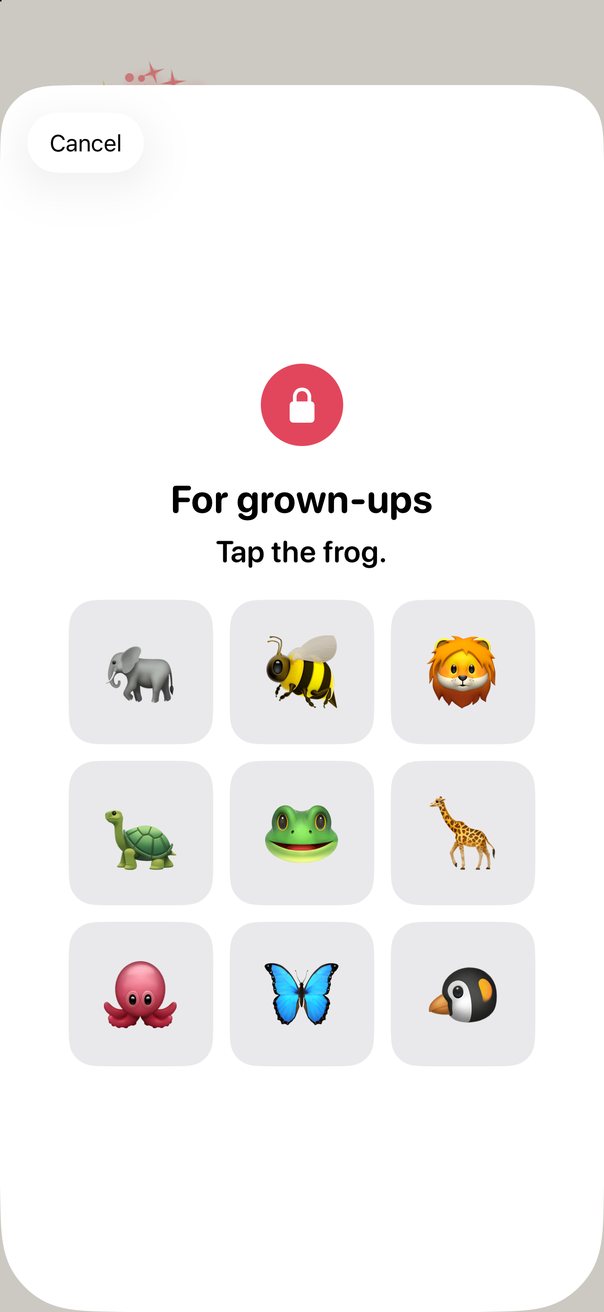 1The grown-up gate: tap the animal the sentence names
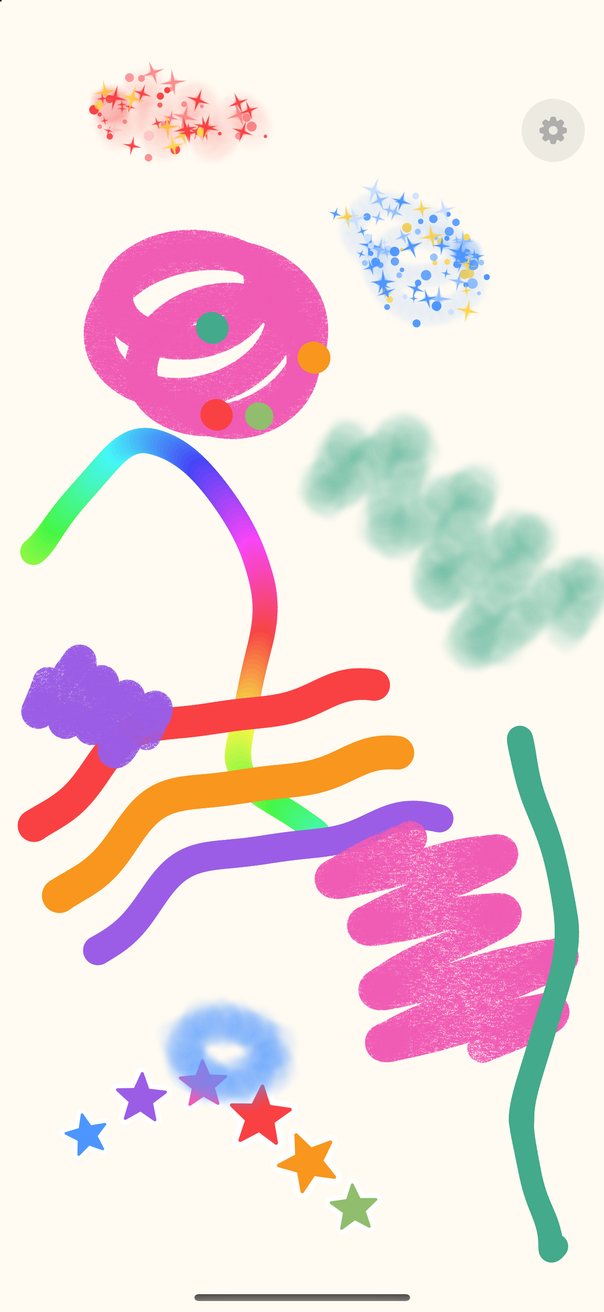 2One small corner button, and a tap does nothing3Every finger draws its own line
- The grown-up gate: tap the animal the sentence names
- One small corner button, and a tap does nothing
- Every finger draws its own line
Questions
Does Guided Access work on iPad?
Yes, with the same steps. Triple-click the top button instead of the side button, or the Home button on an iPad that has one.
Can my child end it?
No. It takes the passcode, or your face or fingerprint if you turned on Face ID or Touch ID. An accidental triple-click only brings up the passcode screen.
How is this different from Screen Time?
Screen Time sets daily limits per app and filters what can be opened, day in, day out. Guided Access locks the device to one app right now, for this session. Screen Time is for your eight-year-old's own iPad; Guided Access is for the minutes a toddler holds yours.
Why does a triple-click do nothing?
Either Guided Access is off in Settings, or you're on the Home Screen rather than in an app. If several accessibility features share the shortcut, a panel appears instead: tap Guided Access in it.
Steps and names from Apple's Use Guided Access on iPhone or iPad and the iPhone User Guide, read on 7 November 2026.